Guide 03
Profiles & schedules
Rotate your favourite stations and set a daily rhythm.
Browse all help guides
Give your day its own routine
A profile brings together stations, screen views, rotation timings and a schedule. You can save up to four. Wi-Fi, device defaults and battery protection are shared across profiles.
Open Settings with KEY2, unlock from your phone and go to Profiles. Choose an existing profile to edit, or select New profile. Give it a name and an optional short description so it’s easy to recognise on the display.
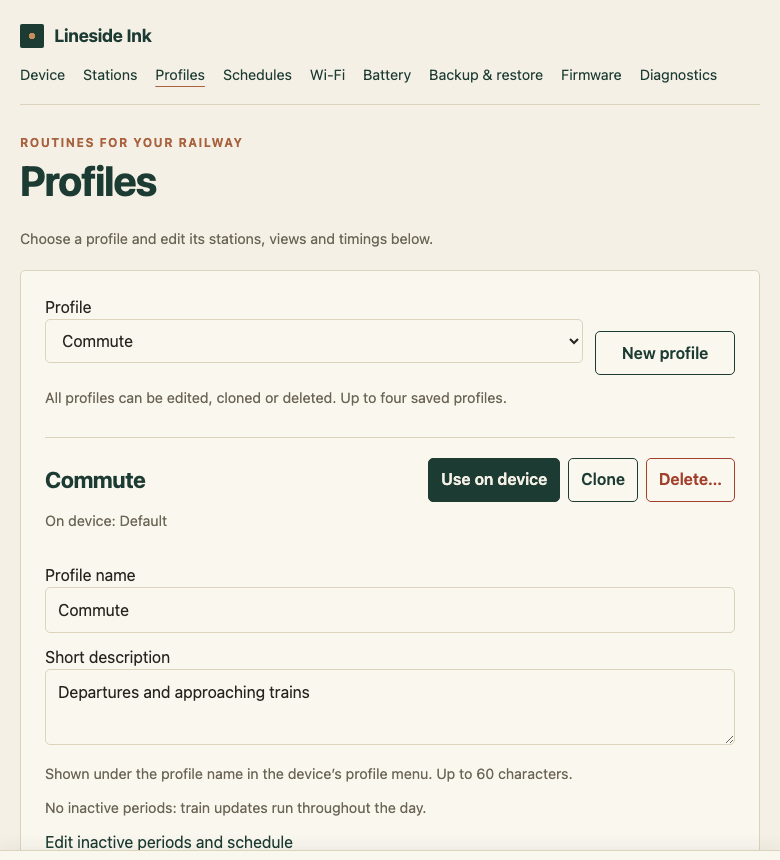
Choose stations, views and timings
- Search for stations inside the profile editor. A profile’s station list is separate from the quick-access Stations page.
- Choose the views for each station and how long each view should stay on screen, from 1 to 60 minutes.
- Put the station cards in your preferred order. The chosen views play in order, then playback moves to the next station and repeats.
- Select Save profile. To start that routine, select Use on device.
Pause updates overnight or while you’re away
From your profile, follow Edit inactive periods and schedule. Select Add inactive period, choose the days and start/end times, then select Save schedule.
For example, an every-day period from 22:00 to 07:00 pauses automatic updates and rotation overnight. The last image stays visible. Times use GMT/BST automatically; an overnight period starts on the selected day. Equal start and end times make the whole day inactive.
Enable Deep sleep during inactive periods to switch off Wi-Fi too, including in Continuously connected mode. Buttons can still wake the display. Leave this off if you want phone access in Continuously connected mode.
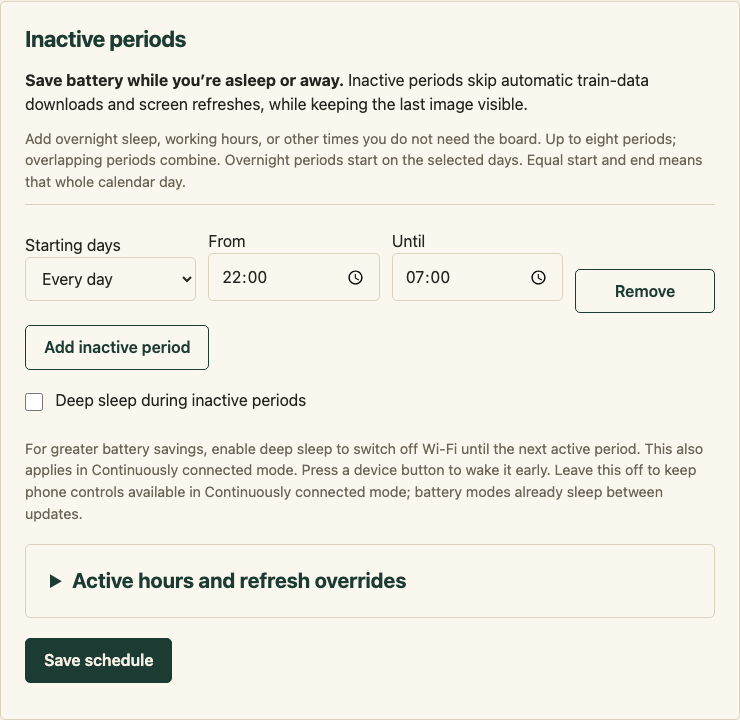
Schedules belong to the chosen profile. Picking a quick-access station with KEY0 pauses profile playback, including its schedule.
Check the daily preview
Profiles and Schedules include a weekday timeline. Choose a day and move the time selector to see the planned stations, views and inactive periods. Unsaved edits update the preview, but you still need to save them.
The timeline is a guide. Manual changes, network delays, clock changes and the device’s retained rotation position can affect the exact timing. If the clock isn’t synchronised, automatic updates continue rather than leaving the display asleep indefinitely.